CRM · Guides
Send SIP calls from iPhone to your CRM
Choose your CRM and follow the setup steps. Callmar sends call details and transcript text, not the audio recording.
Updated for Callmar 1.4 ·
Why iPhone CRM call logging needs a defined call path
An iPhone does not give every CRM app a universal history of calls from the Phone app and other calling services. Reliable automatic logging therefore starts with an app or telephony platform that handles the call itself. Callmar follows that model for an existing SIP line.
Callmar knows the number, direction, start time, duration and transcript for a SIP call made or answered inside the app. When transcription finishes, each enabled direct integration can send that completed record to the CRM. Callmar does not scrape the iPhone call history or claim unrelated calls.
| Call source | Can Callmar send it to a CRM? |
|---|---|
| Outgoing SIP call made in Callmar | Yes, after its transcript is ready |
| Incoming SIP call answered in Callmar | Yes, after its transcript is ready |
| Carrier call in the iPhone Phone app | No |
| FaceTime, WhatsApp or another softphone | No |
| Desk-phone call on the same extension | No; the call did not pass through Callmar |
How CRM delivery works
- Enable recording and transcription, then complete a SIP call inside Callmar.
- Callmar finishes the transcript on the iPhone.
- The enabled integration asks the CRM to search for a contact or person using the call number.
- Callmar creates the CRM’s native call, activity, task, note or event and stores a local delivery receipt.
Auto-creating an unknown contact is off by default. Some CRMs can accept an unassociated call; Capsule and Callmar’s Sellsy workflow need a contact relation and therefore skip unknown callers until you opt in to contact creation.
Is Callmar the right CRM call logger?
It is a good fit when you already have a SIP provider or PBX extension, use Callmar for the business calls on an iPhone and want searchable transcript text beside the customer record. Start with the SIP setup guide if the line is not working yet, or review the recording and transcription guide before connecting customer data.
Choose a different workflow if the calls remain in the carrier Phone app, another softphone or a desk-phone platform. Callmar’s direct connectors are focused on post-call records; they do not add a dialler inside the CRM, upload audio, or replace a full contact-centre integration with screen pops, queues and supervisor tools.
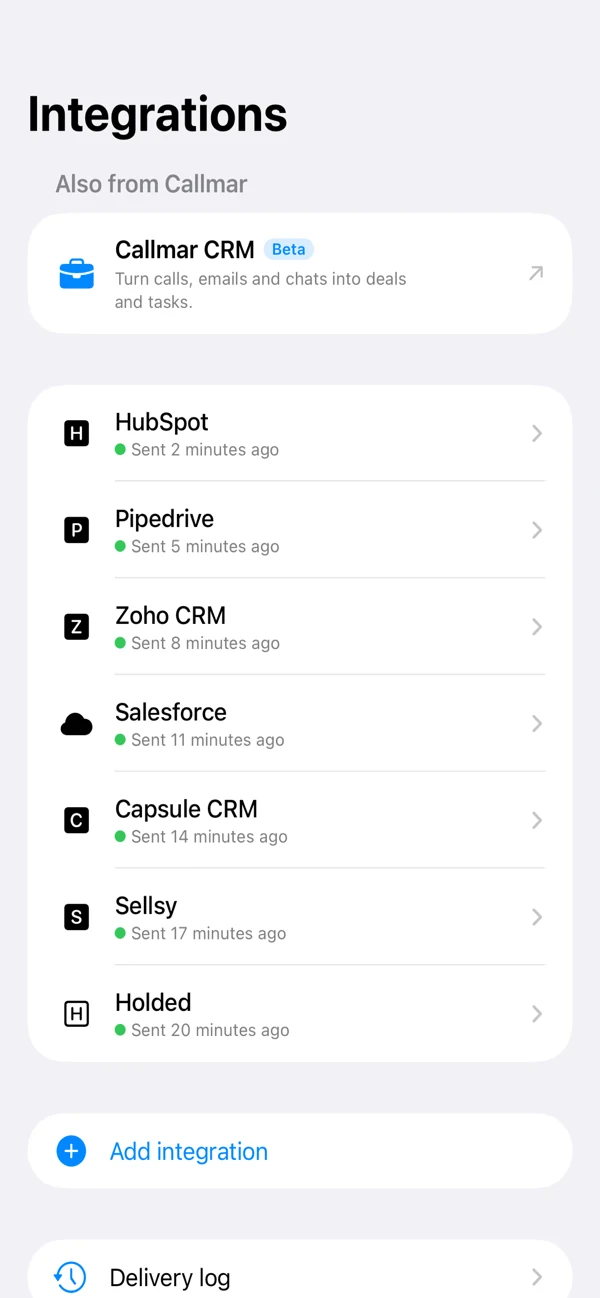
Choose your CRM
What each CRM receives
| CRM | Record created by Callmar | Connection |
|---|---|---|
| HubSpot | Call record | Service Key or Private App token |
| Pipedrive | Completed call activity | OAuth when available or personal API token |
| Zoho CRM | Calls module record | Connect with Zoho |
| Salesforce | Task marked as a call | Your local External Client App |
| Capsule | Call note on a Party | Connect with Capsule |
| Sellsy | Phone-call record | Personal client credentials |
| Holded | Calendar event marked as a call | API token |
Test before sending real customer calls
Start with the integration’s Test connection action. It creates a temporary record, reads the result back and deletes or archives it. Then make one short call to a number already stored on a CRM contact. Confirm the contact link, time, duration and transcript in the CRM itself.
Only after the known-contact test passes should you try an unknown number or enable auto-create. This keeps a permissions mistake from turning into a batch of placeholder contacts.
Use delivery status safely
The integration detail shows calls with transcripts, confirmed deliveries, calls without receipts and items in the retry queue. Delivery log shows queued failures and their last errors. Send missing calls is the normal recovery action because it skips confirmed receipts.
Resend everything is different: it clears receipts and may create duplicate CRM records. Use it only for a deliberate full recovery, not as the first response to one failed call.
Know the privacy boundary
The recording remains on the iPhone. Direct CRM integrations receive call details and transcript text, not audio, summaries or follow-up tasks. A separately configured HMAC-signed webhook can send enabled events such as summary text when another system genuinely needs them.
After delivery, the transcript becomes data in your CRM and follows that system’s access, export and retention policies. Use the minimum permissions needed and remove credentials when an integration is retired.
14-day free trial. Recording & transcription off by default.