Capsule CRM · Guide
Log SIP calls in Capsule CRM from iPhone
Connect Capsule inside Callmar and keep a searchable call note with the contact.
Updated for Callmar 1.4 ·
What appears in Capsule
Callmar adds a note to the matching Capsule contact. The note contains the direction, number, time, duration and transcript text, and is marked with Capsule’s built-in Call activity type.
Capsule’s API can attach an entry to a Party, Project or Opportunity. Callmar deliberately uses a Party, so every note created by this integration needs a matching or new contact. The audio recording and AI summary are not uploaded.
How this differs from Capsule mobile call logging
Capsule’s iPhone app can start a call from a contact and return the user to that contact after the call to add notes. It also offers Caller ID for Capsule contacts. Callmar is useful when the actual business line is SIP and the conversation happens inside Callmar instead.
After an incoming or outgoing Callmar SIP call is transcribed, the enabled integration creates the Capsule Call note with the metadata and transcript already present. It does not read calls from the iPhone Phone app, FaceTime, WhatsApp, another softphone or a desk phone.
Use Capsule’s own mobile workflow if that already covers your calls and manual notes. Use Callmar when you need a SIP softphone on iPhone and want its transcript attached to the Capsule Party. Capsule’s mobile app guide documents its current calling and Caller ID workflow.
Connect Capsule in Callmar
- Open Callmar → Settings → Integrations → Add integration → Capsule CRM.
- Tap Connect with Capsule.
- Sign in, approve access and return to Callmar.
- Confirm that the screen shows Connected.
- Tap Test connection.
The test creates a temporary Capsule Party and call note, reads the note back and deletes both test objects. If cleanup fails, look for items named “Callmar test — safe to delete”.
Important setting for unknown callers
Callmar does not create a Capsule call note without a Party. If Auto-create contact if missing stays off, calls from unknown numbers are not sent. Turn it on if you want Callmar to create a basic contact and attach the note.
The switch is off by default to avoid placeholder contacts. Before turning it on, decide how your team wants unknown callers named, owned and cleaned up.
Verify known and unknown contacts
- Save your test number on an existing Capsule Person.
- Complete a short SIP call in Callmar and wait for its transcript.
- Open the person in Capsule and confirm the Call note, time, duration and transcript.
- If you plan to use auto-create, enable it and repeat with an unknown number. Confirm that a basic Party and note are created.
This pair of tests checks the part of Capsule setup that matters most: phone matching and the required Party association.
What happens to long transcripts
Capsule notes have a content limit. Callmar always preserves the call header and duplicate-protection marker; if a very long transcript would exceed Capsule’s note limit, the transcript tail is shortened and the note says that truncation occurred.
The complete local transcript remains in Callmar on the iPhone. The direct integration still does not attach the audio file.
Review and retry delivery
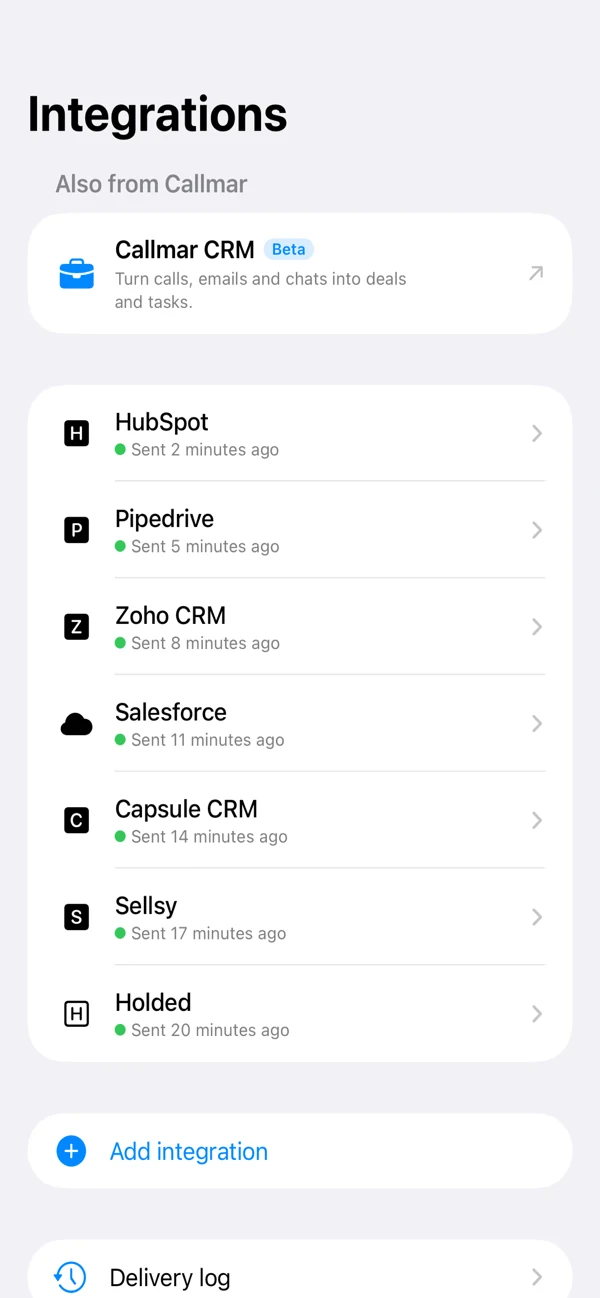
The integration screen shows calls with transcripts, confirmed deliveries, calls without receipts and queued items. Delivery log lists calls still waiting and the last error from Capsule.
After restoring the connection, retry the queued item or use Send missing calls. Do not use Resend everything as a routine retry: it clears local receipts and may add duplicate notes.
Fix common Capsule problems
Connect with Capsule does not complete
Finish sign-in in the browser window and allow it to return to Callmar. If the wrong Capsule account opens, sign out there and reconnect.
A known caller is treated as unknown
Check the phone number saved on the Capsule Party. Use a consistent international format and test with a full number.
An unknown call never appears
This is expected while Auto-create contact is off. Callmar requires a Party for its Capsule note and does not create one without that opt-in.
The note is present but shorter than the local transcript
The transcript may have reached Capsule’s note limit. Open the call in Callmar for the complete local text.
Privacy after delivery
Capsule receives call details and transcript text. The recording, AI summary and follow-up tasks are not included in the direct integration. After delivery, the note follows the access and retention rules of your Capsule account.
Remove the Capsule connection in Callmar if the iPhone should stop sending new transcripts; revoke the authorised application in Capsule when the connection is no longer needed.
Bring your own SIP line. 14-day free trial. Recording & transcription off by default.