Zoho CRM · Guide
Log SIP calls in Zoho CRM from iPhone
Connect Zoho inside Callmar, then keep call details and transcripts with the customer record your team already uses.
Updated for Callmar 1.4 ·
What Callmar sends to Zoho
Callmar creates a record in Zoho’s Calls module with the phone number, direction, time, duration and transcript text. The transcript is stored as readable text in the call record rather than as an audio attachment.
Before creating the call, Callmar searches for a Zoho contact using the call number and links the first contact Zoho returns. Verify that association during the first known-contact test, especially when duplicate numbers exist. When Zoho returns no contact, the result depends on your Auto-create setting.
Only text and call details are sent. The audio recording and Apple Intelligence summary are not uploaded to Zoho.
Can Zoho log iPhone calls automatically?
An iPhone does not give a CRM app a universal feed of every call made in the Phone app, FaceTime, WhatsApp or another softphone. Callmar does not try to read that history. It can automate a narrower, reliable path because it handles the SIP call itself.
When the Zoho integration is enabled and a transcript finishes, Callmar sends the incoming or outgoing SIP call to Zoho’s Calls module. A carrier call made in the iPhone Phone app, a call from another app or a desk-phone call on the same extension is outside that path and is not logged by Callmar.
This setup fits a team that already has a SIP provider or PBX and wants those business calls and transcript text in Zoho. Callmar is a SIP client, not a mobile carrier service, and this connector does not turn unrelated iPhone calls into Zoho records.
Check your Zoho data center
Zoho accounts live in separate regional data centers. Look at the address in your browser while signed in: endings such as .com, .eu, .in or .com.au identify the region. Choose the same region in Callmar before signing in.
Callmar 1.4 offers United States, Europe, India, Australia, Japan, China, Canada and Saudi Arabia. These account hosts are listed in Zoho’s current access-token documentation. After sign-in, Callmar uses the API domain returned by Zoho instead of guessing it from the region name.
Connect Zoho in Callmar
- Open Callmar → Settings → Integrations → Add integration → Zoho CRM.
- Choose the Zoho data center shown in your Zoho web address.
- Tap Connect with Zoho, sign in and approve access.
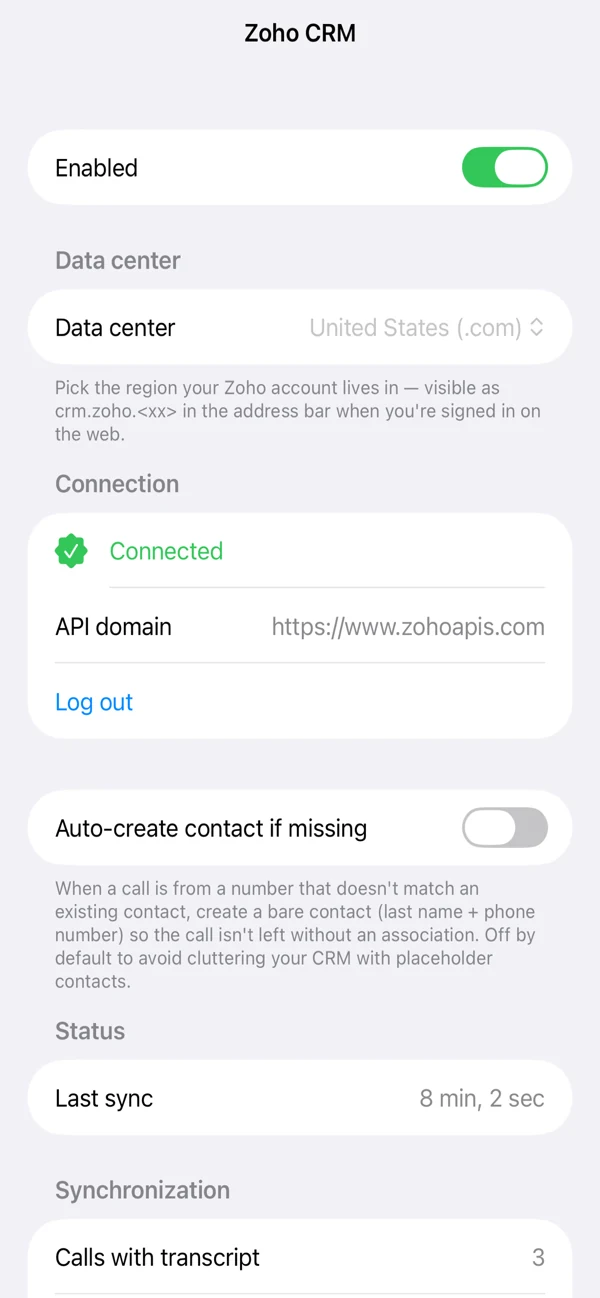
- Return to Callmar. The connection section should now show Connected and the API domain for your account.
- Tap Test connection.
Test connection creates a temporary test call, reads it back to verify the stored fields and then deletes it. If cleanup fails, one clearly labelled test record may remain in Zoho.
Choose how unknown numbers are handled
Auto-create contact if missing is off by default. Turn it on if you want Callmar to create a basic Zoho contact when no phone-number match exists. Leave it off if your team prefers to create contacts manually.
With the switch off, Callmar can still create the Zoho call record without a contact link. You can associate it later in Zoho if needed. With the switch on, the new contact contains the phone number and a basic name so the call has somewhere to attach.
Send and verify the first real call
- Make or receive a short SIP call inside Callmar.
- Wait until its transcript is complete.
- Open the Zoho integration in Callmar and check that the Delivered count increases.
- In Zoho, open the Calls module and confirm the number, direction, duration, contact link and transcript text.
Use a known contact for this first test. It verifies contact matching and makes the result easy to find. Once that passes, repeat with an unknown number if you plan to use auto-create.
Understand delivery status and retries
The integration screen separates calls with transcripts, delivered calls, calls not yet delivered and items in the retry queue. A local delivery receipt prevents a normal rescan from sending an already confirmed call again.
Open Delivery log to review items still waiting, see the last error and retry them. Send missing calls sends only calls without a delivery receipt. The separate Resend everything action can create duplicates and should be reserved for a deliberate recovery.
Fix common Zoho connection problems
Sign-in opens the wrong Zoho account
Cancel, confirm the data center and sign out of the unwanted Zoho session in the browser before trying again.
The account connects but Test connection fails
Reconnect if the API domain is missing. Also confirm that the Zoho user may create Calls and read Contacts in that organisation.
The call arrives without a contact
Compare the number formats in Callmar and Zoho. If there is no matching contact, enable Auto-create only if that fits your CRM policy.
A delivery remains in the queue
Open Delivery log for the last error, restore the connection or permissions, then retry the item. Do not use Resend everything for one failed call.
Privacy boundary
The Zoho integration receives the data needed for the CRM record: call details and transcript text. The recording remains on the iPhone and is not uploaded to Zoho. AI summaries and follow-up tasks also stay out of the direct Zoho payload.
Because the transcript becomes Zoho data after delivery, your Zoho retention, access and compliance rules apply to that copy. Use a test organisation or non-sensitive test call while setting up permissions.
Bring your own SIP line. 14-day free trial. Recording & transcription off by default.