SIP on iPhone · Guide
SIP softphone for iPhone: complete setup guide
Connect the SIP line you already have, make it ring on the lock screen and verify every part of the call path before you rely on it.
Updated for Callmar 1.4 ·
What a SIP softphone does on iPhone
A SIP softphone is an app that registers to a Voice over IP service and acts as the handset for that service. The app is not the telephone company: your SIP provider or company PBX still owns the number, decides which calls may be placed, receives incoming calls and sets any usage charges. Callmar signs in with the account you already have.
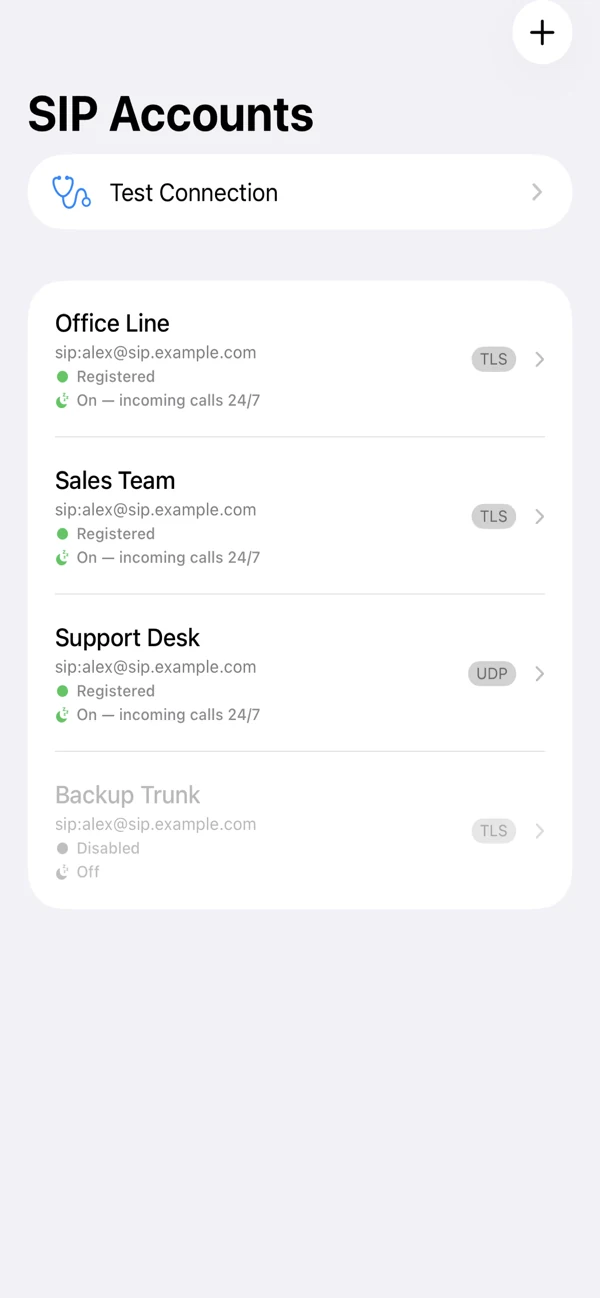
On iPhone, Callmar connects that SIP account to Apple’s CallKit experience. Incoming calls can appear on the familiar lock screen, while active calls use normal iPhone controls for mute, speaker, keypad and audio routes such as AirPods or Bluetooth. You can keep several SIP accounts in the app and choose the appropriate line before an outgoing call.
Downloading a softphone does not create a phone number or add credit to a calling plan. If you do not have a SIP server, username and password, obtain them from a VoIP provider or PBX administrator before starting. A login for the provider’s website is usually not the same thing as a SIP login.
Check that your SIP account is compatible
Most standard accounts that accept a username-and-password registration can be tested in Callmar. Some business phone systems use extra provisioning or network requirements that a manual SIP form cannot represent. Check the account type before spending time changing random ports.
| Account or phone-system setup | What to confirm |
|---|---|
| Standard hosted SIP account | The provider supplies a registrar host, one username, password, port and UDP, TCP or TLS transport. |
| Asterisk or FreePBX extension | The extension may register remotely and its contact limit allows the iPhone or a separate mobile extension. |
| Different SIP identity and authentication username | Callmar has one Username field. Ask whether one value can be used for both roles. |
| Separate mandatory outbound proxy | Callmar does not expose a separate outbound-proxy field in the manual form. Ask whether the supplied server can be used directly as the registrar. |
| IP-authenticated SIP trunk | A trunk is not normally an end-user extension. Ask the provider for a registerable user account rather than entering trunk credentials blindly. |
| PBX reachable only on a private LAN or VPN | Direct registration may work while the iPhone can reach that network. The Callmar relay cannot register to a server hidden inside it. |
| QR code, vendor tunnel or app-only provisioning | Request documented manual SIP values or use the vendor app. See the separate 3CX compatibility guide. |
If the administrator cannot answer which registrar, transport and authentication model the account uses, first compare with a known working desk phone or provider document. A successful web login or QR code does not prove that manual SIP registration is available.
Get the exact SIP settings from your provider
Write down the complete connection profile before opening the account editor. Provider defaults vary, and a familiar value such as port 5060 is not evidence that it is correct for your account.
- Server or registrar: a host such as
sip.company.com. Do not enterhttps://, a customer-portal URL or a path such as/login. - Port: the SIP listening port. 5060 and 5061 are common, but providers may use another value.
- Transport: UDP, TCP or TLS. This must match the listener on the same port.
- Username: the SIP authentication name. It may look like an extension, a customer number or a random identifier.
- Password: the SIP secret, not the web portal, voicemail or administrator password.
- Media encryption: whether the endpoint expects SDES-SRTP. Leave SRTP off unless the provider explicitly supports it.
- Number format: whether outbound calls require a full international number, an extension or a PBX-specific prefix.
Also ask whether the same credentials may register from more than one device. Some servers replace the desk phone’s contact; others reject the second device. A dedicated mobile extension usually makes registration and incoming routing easier to diagnose.
Add the SIP account in Callmar
- Open Accounts, tap Add Account and choose a quick-setup profile or Custom / Other. A profile fills technical defaults; it does not invent your server or credentials.
- Give the line a recognisable name such as Work, Support or Personal SIP.
- Enter the server host and port exactly as supplied. Select UDP, TCP or TLS under Transport.
- Enter the SIP Username and Password. On an existing account, leaving the password box empty keeps the password already saved in the iOS Keychain.
- Turn on SRTP Encryption only when the provider expects it. TLS encrypts signalling; SRTP is a separate media setting.
- Keep Use Callmar push relay on for incoming calls while the app is closed. Choose Netherlands for most international providers or Russia for Russian providers.
- Tap Save. Callmar stores the account and starts registration; wait for the connection view to show that the provider side is ready.
Saved means only that the form passed its local checks. Registered means a SIP server accepted the account. A working line still needs outgoing, incoming and audio tests.
How lock-screen incoming calls work
iOS does not let an ordinary app keep a permanent network socket active in the background. Apple’s PushKit model lets a VoIP service wake the app for a real incoming call, and CallKit presents the system incoming-call screen. This is why a direct SIP registration that works while the app is open may stop being reachable later.
With the push relay enabled, SIP signalling is routed through the selected Callmar proxy. For supported accounts, the relay holds the upstream registration, receives the incoming SIP invitation and sends the iPhone a VoIP push. Callmar wakes, reports the call to CallKit and reconnects the call leg, so incoming calls can ring on the lock screen even when the app is closed. The live conversation audio still follows the path chosen by your SIP provider, PBX or SBC; the relay is not a cloud recording service.
For 24/7 registration, the app sends that account’s SIP username, password and address-of-record to the relay over TLS. The password is encrypted at rest and used only to register to the provider. Disable the relay or delete the account to remove that server-side registration. The details are documented in the Callmar Privacy Policy.
With the relay off, Callmar registers directly and can receive calls only while the app is running. After deliberately force-quitting Callmar, reopen it once before relying on incoming calls again.
Test outgoing and incoming calls
Do not treat one green indicator as an end-to-end test. Use a known number at each step and change only one setting between attempts.
- Registration: confirm the provider accepted the credentials and the account no longer shows an error.
- Outgoing signalling: call another extension or a number you can answer. Confirm the correct caller ID.
- Two-way media: speak in both directions, then try mute, speaker and the keypad.
- Incoming while open: call the DID or extension that should route to this account with Callmar in the foreground.
- Incoming while closed: leave the app, lock the iPhone and repeat the same call.
- Network change: after the basic test passes, repeat on both Wi-Fi and cellular data if the line will be used away from the office.
The order matters. If the open-app incoming test fails, look at the provider’s DID, ring group or extension route before blaming push. If only the locked-screen test fails, the basic SIP route already works and the next checks are relay status, APNs delivery and iOS notification permission.
Read the registration and incoming-call path
A relay account has two relevant SIP legs: iPhone to Callmar relay, and relay to your provider. A direct account has one leg from the iPhone to the provider. Callmar keeps the questions SIP registration and Incoming when closed separate so a healthy local connection cannot hide a provider-side failure.
Edit an account to see its connection path. Tap an issue for a plain-language explanation, or choose Run connection test to inspect network, push and per-account registration state. A SIP response such as 403 Forbidden gives a different lead from a DNS or TLS failure that occurs before any SIP response exists.
| Observed result | Layer already proven | Next place to check |
|---|---|---|
| Saved, never registered | Local form only | Host, credentials, port, transport and provider policy |
| Registered, outbound fails | Authentication | Number format, balance, permissions and outbound route |
| Outbound works, no inbound | Registration and outbound route | DID mapping, extension target and contact selection |
| Incoming works only with app open | Provider inbound route | Push relay, enrollment, notification permission and reachability |
| Call connects, audio fails | SIP signalling | RTP/NAT path, codec policy and SRTP agreement |
Use TLS, SRTP and credentials deliberately
TLS protects SIP signalling between Callmar and the server it connects to. SRTP protects the media stream. Enabling one does not silently enable the other. The server and app must agree on both settings, otherwise a line may register but reject calls or connect without audio.
For TLS, enter the host name covered by the server certificate. An IP address can reach the same machine and still fail validation when the certificate was issued for sip.example.com. Callmar expects a certificate that chains to a publicly trusted authority; a private or self-signed PBX certificate will not validate as a public Internet service.
Use a unique, strong SIP password because Internet-facing registrars attract automated login attempts. Callmar keeps the device copy in the iOS Keychain. If you enable 24/7 relay registration, the upstream credentials are also transmitted and retained as described in the privacy policy. Do not reuse a PBX administrator or company-wide web password as an extension secret.
Use the SIP line day to day
After the full test passes, choose the desired account before an outgoing call and answer incoming calls through the native iPhone interface. During a call, Callmar provides mute, hold, speaker, DTMF keypad and the iOS audio-route picker for earpiece, AirPods, Bluetooth, AirPlay or CarPlay routes available on the device.
You can set a voicemail access number such as a PBX extension or feature code to show a shortcut for that account. For blind transfer, the standard option is SIP REFER. If a provider does not support REFER but documents a DTMF transfer sequence, the account can use a template such as *2{n}#. Do not guess a feature code: it is interpreted by the provider or PBX.
For server-specific preparation, continue with the Asterisk or FreePBX guide. For 3CX, review the compatibility limits before trying manual credentials.
Fix common SIP softphone problems
Save is disabled or the account saves without registering
A new account needs a server, username and password before it can be saved. After saving, registration is a separate network operation. Reopen the account and compare every field with the provider’s SIP instructions, not its web-account page.
401 Unauthorized or 403 Forbidden
These responses can mean a wrong SIP username or password, but 403 may also reflect an account policy, blocked source address, rate limit or contact limit. Stop repeated retries, confirm the authentication name and ask the provider what policy rejected the REGISTER request.
Timeout, DNS failure or server unreachable
Remove URL schemes and paths from the Server field. Confirm that the host resolves on the iPhone network and that the chosen UDP, TCP or TLS listener exists on the stated port. A private PBX may require office Wi-Fi or VPN; changing the password cannot fix an unreachable network.
Registered, but an outgoing call fails immediately
Registration proves the login, not permission to dial every destination. Try the provider’s documented number format. Then check balance, extension permissions, emergency-call policy and outbound routes with the provider or administrator.
Incoming works only while Callmar is open
First confirm the account uses the push relay and the provider side of the connection path is healthy. Allow Callmar notifications in iOS Settings, verify the selected relay can reach the SIP server and run the locked-screen test again. If the PBX is private, the relay needs a documented public path or it cannot hold registration.
No audio or audio travels in one direction
This is normally a media-path problem after signalling has already succeeded. Compare SRTP with the server endpoint, then ask the administrator to inspect RTP ports, NAT address rewriting, local-network definitions and codec policy. Test on a second network before concluding that the microphone is defective.
Calls fail after TLS or SRTP is enabled
For TLS, use the certificate host name and correct TLS port. For SRTP, a 486 or 488 response can mean the provider rejected the encrypted-media offer. Return to the provider’s stated combination instead of enabling every security switch at once.
A connected call drops after about 30 seconds
A repeatable drop near 30–32 seconds often points to a missing SIP ACK or NAT route rather than an iPhone screen timer. Record the exact interval and ask the administrator to inspect a SIP trace for the 200 OK, ACK and subsequent retransmissions. Changing codecs will not repair a missing signalling response.
The line breaks after moving between Wi-Fi and cellular
Network changes replace the iPhone’s address and transport. Give Callmar time to refresh registration, then inspect the connection path. If one network always fails, check that network’s DNS, firewall or VPN policy rather than deleting a working account.
Turn SIP calls into private notes
Recording and transcription are optional and off until you enable them. Callmar can capture a SIP call handled inside the app and build a searchable transcript on the iPhone. It cannot record a mobile-carrier call, FaceTime, WhatsApp or a call made inside another app.
On supported devices, Apple Intelligence can create summaries, key points and follow-up tasks from the transcript. Callmar does not upload the audio recording to its servers. You remain responsible for consent and the recording laws that apply to all participants. See the full recording and transcription guide.
Callmar 1.4 can send call details and transcript text to HubSpot, Pipedrive, Zoho, Salesforce, Capsule, Sellsy or Holded; the direct integrations do not send the audio recording. Start with one known contact and check the delivery receipt using the CRM setup guides.
Bring your own SIP line. 14-day free trial. Recording & transcription off by default.