Recording & AI · Guide
Record and transcribe SIP calls on iPhone
Turn calls made in Callmar into searchable transcripts, summaries and follow-up tasks without uploading recordings to Callmar’s servers.
Updated for Callmar 1.4 ·
Which calls Callmar can record
The recorder is part of Callmar’s own SIP call path. It can capture an incoming or outgoing SIP call that is handled inside Callmar. It cannot reach into another app or the iPhone carrier call system.
| Call type | Can Callmar record it? |
|---|---|
| SIP call made in Callmar | Yes, when recording is enabled |
| SIP call answered in Callmar | Yes, when recording is enabled |
| Normal mobile-carrier call | No |
| FaceTime, WhatsApp or another calling app | No |
| Call made from a desk phone on the same extension | No; it did not pass through Callmar |
Both sides of a Callmar call are kept separately so the transcript can label the conversation as Me and Caller.
Callmar or Apple Phone recording: choose by call source
Apple’s Phone app has its own recording workflow for one-to-one phone calls in supported countries and regions. Both participants hear an audio notice, and the recording and transcript are saved in Apple Notes. That is the direct choice for a normal carrier call when Apple’s feature is available for the device, language and region.
Callmar serves a different call path. It is for an existing SIP account or PBX extension used inside Callmar. Because the app handles that SIP conversation, it can keep the call in its own archive, separate the two speakers and send transcript text to a supported CRM. It cannot import recordings from Apple Notes or observe calls handled by the Phone app.
| What you need | Use this workflow |
|---|---|
| Record a normal one-to-one Phone call | Apple Phone recording, where available |
| Record an incoming or outgoing SIP call in Callmar | Callmar recording and transcription |
| Keep SIP transcript text with a CRM contact | Callmar plus a supported CRM integration |
| Capture FaceTime, WhatsApp or another calling app | Use that service’s own supported tools; Callmar cannot capture it |
If you need to record an occasional carrier call, Apple’s native Notes workflow may be simpler. Callmar is the better fit when the business number is SIP, incoming and outgoing calls use the same softphone, and the resulting text needs to stay with the call or move into a CRM.
See Apple’s current iPhone recording guide for its regional, language and consent requirements.
Enable recording deliberately
- Open Callmar Settings and turn on recording and transcription.
- Choose the transcription language used in your calls.
- Confirm that the selected speech engine is ready. Download the optional WhisperKit model if that is the route you choose.
- Make a short test call with consent and wait for its transcript.
- Open the call in the archive and check both speakers, names and any summary before recording important conversations.
Recording and transcription are off by default. Enabling the feature is a choice, not a hidden background action.
How on-device transcription works
On iOS 26, Callmar can use Apple Speech when it is available for the chosen language and device. You can also use an optional WhisperKit model downloaded to the iPhone. In both cases, speech processing for the transcript happens on the device.
The first transcription can take longer while a model is being prepared. Long calls also need more processing time than a short test call. Keep enough free storage for the recording and any local speech model you install.
If Apple Speech is not available for your combination of iOS, hardware or language, the optional WhisperKit route provides a local alternative instead of sending the recording to Callmar.
From transcript to useful notes
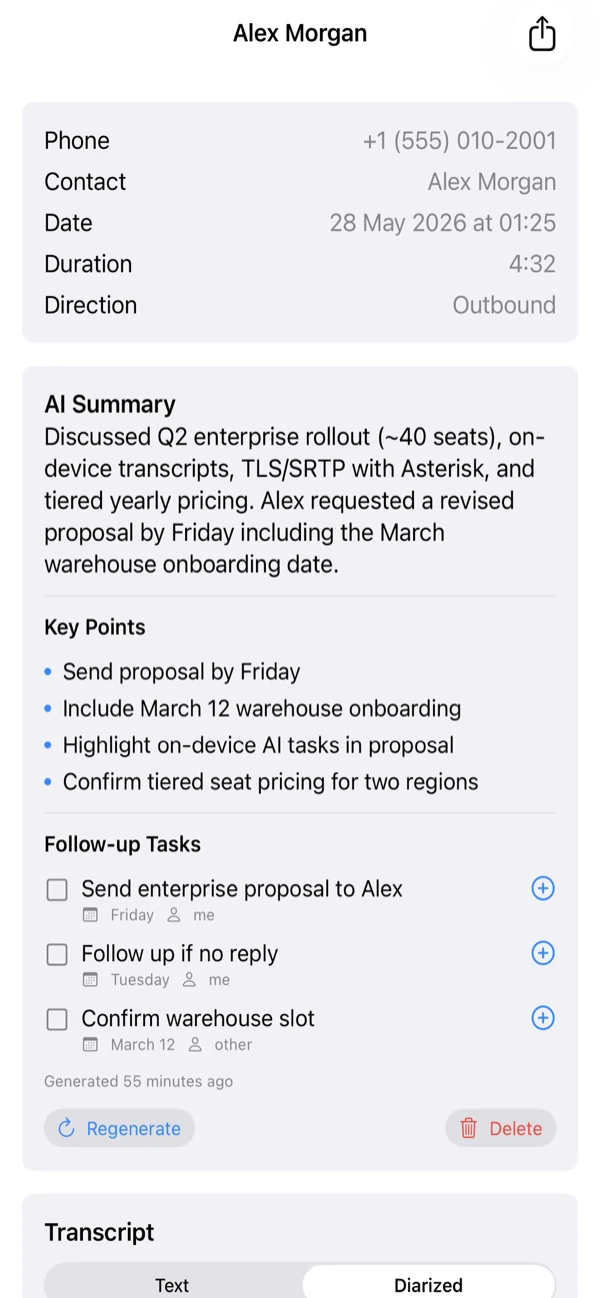
After transcription, the call stays in a searchable archive with its direction, time, duration and speaker-labelled text. This is useful even without generative AI: you can return to the exact conversation instead of relying on a handwritten note.
On supported iPhones, Apple Intelligence can turn that text into a summary, key points and follow-up tasks. Availability depends on the device, iOS version, language and region. A transcript can still exist when the Apple Intelligence summary feature is unavailable.
Always review generated notes before treating them as a commitment, instruction or customer record. Names, numbers and specialised terms are the easiest details for speech or summary tools to misread.
What stays on the iPhone
Callmar does not upload your call recordings to its servers. The recording, transcript and generated notes remain associated with the call on the device. The Callmar relay used for background incoming handles SIP signalling; it is not a cloud recording service.
Your live call media follows the route provided by the PBX, SBC or SIP service. That is separate from the optional recording saved on the iPhone.
Send the right result to a CRM
Callmar 1.4 connects to HubSpot, Pipedrive, Zoho, Salesforce, Capsule, Sellsy and Holded. These direct integrations send the call details and transcript text. They do not send the recording, and they do not send the Apple Intelligence summary.
That boundary keeps the normal CRM record predictable. Open the integration screen after a test call to see how many calls have a transcript, how many were delivered and whether anything is waiting in the retry queue.
If another system needs enabled events such as summary text, configure a separate HMAC-signed webhook. Webhooks have their own event choices, retry queue and delivery log. Start with the CRM setup guides.
Fix a missing or poor transcript
No transcript appears
Confirm that recording and transcription were enabled before the call, that the call happened inside Callmar and that the selected speech engine is ready. A call made in another app will not appear later.
The transcript uses the wrong language
Choose the language spoken in the call before the next test. Language selection affects the speech model and recognition; it is not simply a display-language preference.
The speakers or words are wrong
Try a quiet, short test with both sides speaking separately. Background noise, overlapping speech, names and industry terms can reduce accuracy. Edit your downstream notes instead of assuming the raw transcript is perfect.
The summary is missing
A transcript and an Apple Intelligence summary have different requirements. Check that the iPhone, iOS version, language and region support Apple Intelligence.
Consent and recording law
Rules for recording a call vary by country, state and the people on the call. Some places require one person’s consent; others require everyone to agree. Workplace and regulated-sector policies can add further requirements.
Callmar cannot decide which rule applies to you. Tell the other person when required, obtain the necessary consent and follow your organisation’s retention policy. If you are unsure, get local legal advice before enabling recording.
Bring your own SIP line. 14-day free trial. Recording & transcription off by default.