Holded · Guide
Log SIP calls in Holded from iPhone
Send Callmar call events and transcript text to Holded while keeping the audio recording out of the CRM.
Updated for Callmar 1.4 ·
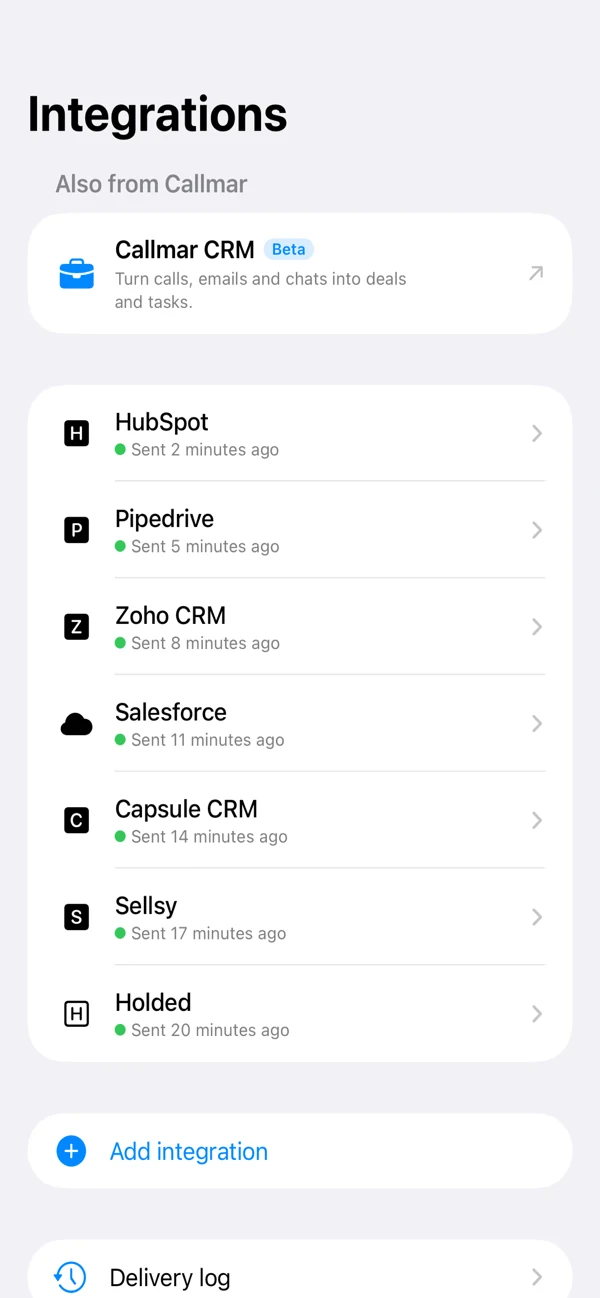
What appears in Holded
Callmar creates a Holded API v2 Event with kind: call and completed status. It includes the phone number, direction, time, duration and transcript text, and links to a matching contact when one is found.
The API schema permits an event without a contact, so Callmar sends an unlinked event when no contact is found and auto-create is off. The audio recording, Apple Intelligence summary and follow-up tasks are not sent.
From manual activity entry to a Callmar event
Holded can be used to record customer activities and calls, but Callmar automates only the calls it actually handles. When an enabled Callmar SIP call finishes transcription, the connector creates the call event with its time, direction, duration and conversation text.
The scope is intentionally clear: incoming and outgoing SIP calls made in Callmar are eligible. A carrier call from the iPhone Phone app, FaceTime, WhatsApp, another softphone or a desk phone is not visible to Callmar and will not become a Holded event through this integration.
This is a good fit when a business already has a SIP provider or PBX extension and wants those mobile conversations in Holded without copying notes by hand. Callmar does not provide the SIP number itself and does not replace Holded’s pipeline, tasks or other CRM features.
Create a Holded API key
- In Holded on the web, open Settings → API.
- Click Generate new key.
- Name it Callmar and grant the minimum read/write permissions for CRM events and contacts.
- Generate the key and copy it immediately; Holded says it will not be shown again.
See Holded’s current authentication guide for the menu path, Bearer-token format and permission model.
Connect Holded in Callmar
- Open Settings → Integrations → Add integration → Holded.
- Paste the API key and tap Save.
- Run Test connection before relying on automatic delivery.
The test creates a temporary contact and call event, reads the event back and deletes both objects. This verifies event and contact permissions before a real transcript is sent.
Choose contact behaviour
With Auto-create contact off, Callmar sends the call event without a contact ID when no match is found, as permitted by the API v2 schema. Turn the switch on if you want Callmar to create a basic contact for unknown numbers.
Leaving auto-create off is a good starting point for teams that require tax IDs, owners or other fields on new contacts. Confirm the unlinked-event behaviour with a non-sensitive test call in your Holded account before adopting that workflow.
Verify the first Holded event
- Use a number already stored on a Holded contact.
- Complete a short Callmar SIP call and wait for its transcript.
- Check that the Holded integration’s Delivered count increases.
- Open the event in Holded and verify its contact, time, direction, duration and transcript text.
Then test an unknown number with auto-create off, and again with it on only if you plan to create contacts automatically.
Monitor delivery and recover failures
The integration screen shows transcribed calls, confirmed deliveries, missing calls and items waiting in the retry queue. Open Delivery log to see the last Holded error and retry a queued item.
Send missing calls respects local delivery receipts and is the normal recovery action. Resend everything clears those receipts and can create duplicate events or contacts.
Fix common Holded problems
API is missing from Settings
Your Holded account and role must have API access. Ask the account administrator or Holded support to confirm availability and permissions for your account.
Test connection returns forbidden
Edit or replace the token with one that can read and create the needed events and contacts. Saving a key in Callmar does not prove that Holded granted those permissions.
The event has no contact
Check the number saved on the Holded contact. This is not a delivery failure: with auto-create off, an unmatched event is allowed to remain unlinked.
A call stays in the queue
Open Delivery log, correct the key or connection and retry the item. Avoid resending the full archive for a single permission error.
Privacy and key hygiene
Holded receives the call fields and transcript text. The recording stays on the iPhone, and the direct integration does not send the AI summary or follow-up tasks.
Treat the API key like a password. Store it only where needed, delete it from Callmar when disconnecting and revoke it in Holded if the iPhone is lost or the integration is retired.
Bring your own SIP line. 14-day free trial. Recording & transcription off by default.